How to Install an eSIM on iPhone: Step-by-Step
A quick walkthrough of setting up your travel eSIM on any compatible iPhone, from scanning the QR code to getting online.
Setting up an eSIM on your iPhone takes just a few minutes. Here is exactly how to do it.
Before You Start
Make sure your iPhone supports eSIM (iPhone XR or later) and that your device is not carrier-locked. You will also need a Wi-Fi connection for the initial setup.
Step-by-Step Instructions
- Open Settings on your iPhone
- Tap Mobile Data (or Cellular)
- Tap Add eSIM or Add Mobile Plan
- Select Use QR Code
- Point your camera at the QR code you received after purchase
- Wait for the carrier profile to download (usually 30-60 seconds)
- Tap Done when the setup is complete
Configuring Your eSIM
After installation, you can label your eSIM (e.g., "Travel Data") and choose which line to use for mobile data:
- Go to Settings > Mobile Data
- Select your eSIM as the data line
- Keep your primary SIM for calls and texts
When to Activate
You can install the eSIM before your trip, but data usage only begins when you connect to a network in the covered country. This means you can set everything up at home and be ready to go when you land.
More from the blog

What Is an eSIM? A Complete Guide for Travellers
Learn everything about eSIM technology — how it works, which phones support it, and why it is replacing physical SIM cards for international travel.
Best eSIM Plans for Europe in 2026
Travelling across Europe? Compare the best eSIM data plans covering multiple EU countries with one simple package.
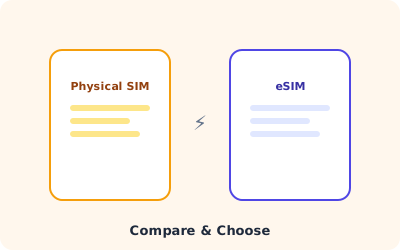
eSIM vs Physical SIM: Which Is Better for Travel?
A side-by-side comparison of eSIM and traditional SIM cards to help you decide which option works best for your next trip.